Getting Started with Grok Bot
Install Grok Bot, create a focused teammate, and run your first handoff that stops at review.
Most "AI assistants" leave you with a draft in chat. Grok Bot is built for the other half of the job: finishing work inside the tools you already use, then coming back when something needs your yes.
This guide is a practical first week: install, create one focused Bot, run a safe handoff, and turn the stable loop into a skill or routine. Official product pages and docs are linked at the end.
What Grok Bot is (and isn't)
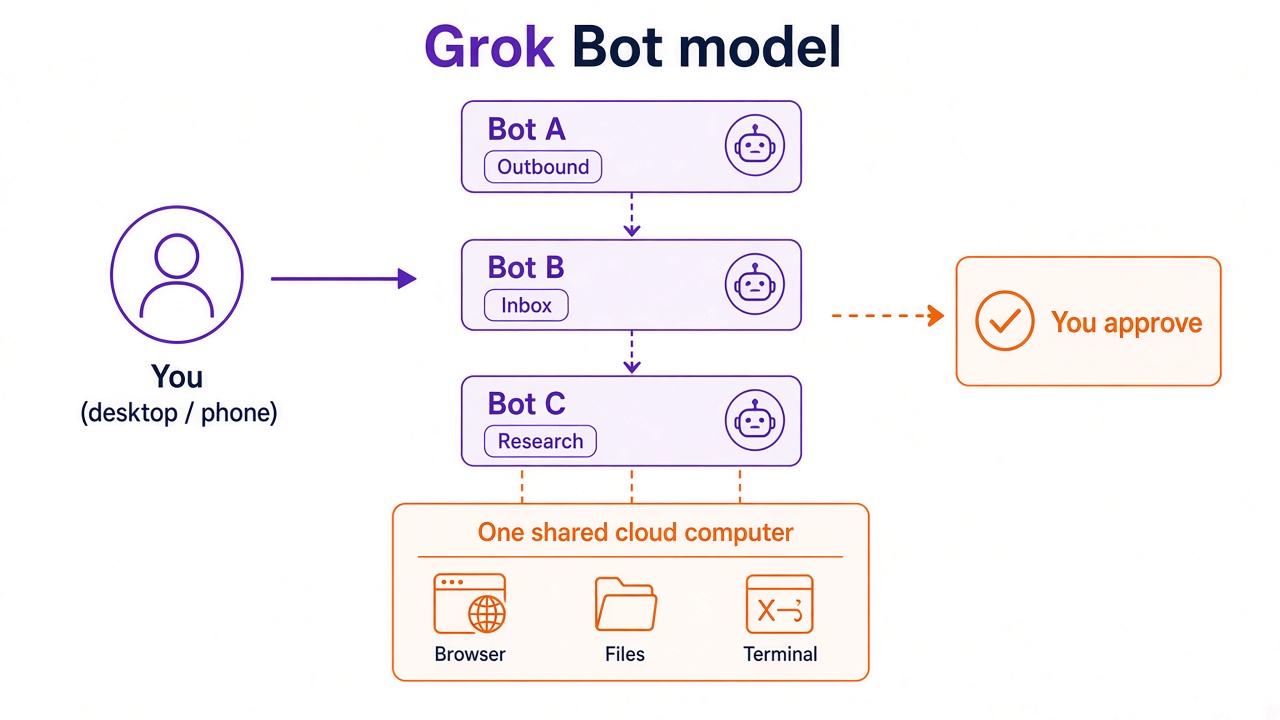
Grok Bot gives you named AI teammates. Each Bot keeps a job, memory, and preferences across sessions. Under the hood they share one persistent cloud computer with a browser, filesystem, and terminal, so work continues even when your laptop is closed.
That is the core difference from a chat box:
| Typical chat assistant | Grok Bot | |
|---|---|---|
| Where work happens | In the conversation | In your apps, sites, and files on a cloud computer |
| Context | Resets or lives in one long thread | Named Bots keep role memory; computer sessions and files are shared across your Bots |
| Parallelism | One reply at a time | Several Bots can work at once and hand off to each other |
| When you leave | Stops when the tab closes | Background turns and routines keep going |
| Your job | Prompt forever | Scope the outcome, approve consequential steps |
Think of Bots as teammates you message, not a workflow canvas you configure by hand. Setup is a message: create the Bot, describe the job, grant access as it asks.
Platforms and access
- Desktop: macOS (Apple silicon and Intel), Windows (x64 and Arm64), Linux (x64 and Arm64)
- Mobile: iPhone (iOS 18+); Android is also listed on Google Play for messaging and approvals on the go
- Included with: paid individual Cursor plans and Cursor Teams, or by linking an individual SuperGrok / SuperGrok Plus / SuperGrok Heavy subscription
- Privacy note: Grok Bot needs cloud data storage. Accounts still on Privacy Mode (Legacy) are prompted to switch to Privacy Mode before starting
Download from the Grok Bot product page or your Cursor dashboard's Download Grok Bot setup row. Sign in with your Cursor account. There is no separate Grok Bot login. SSO follows your existing Cursor setup.
First handoff in six steps
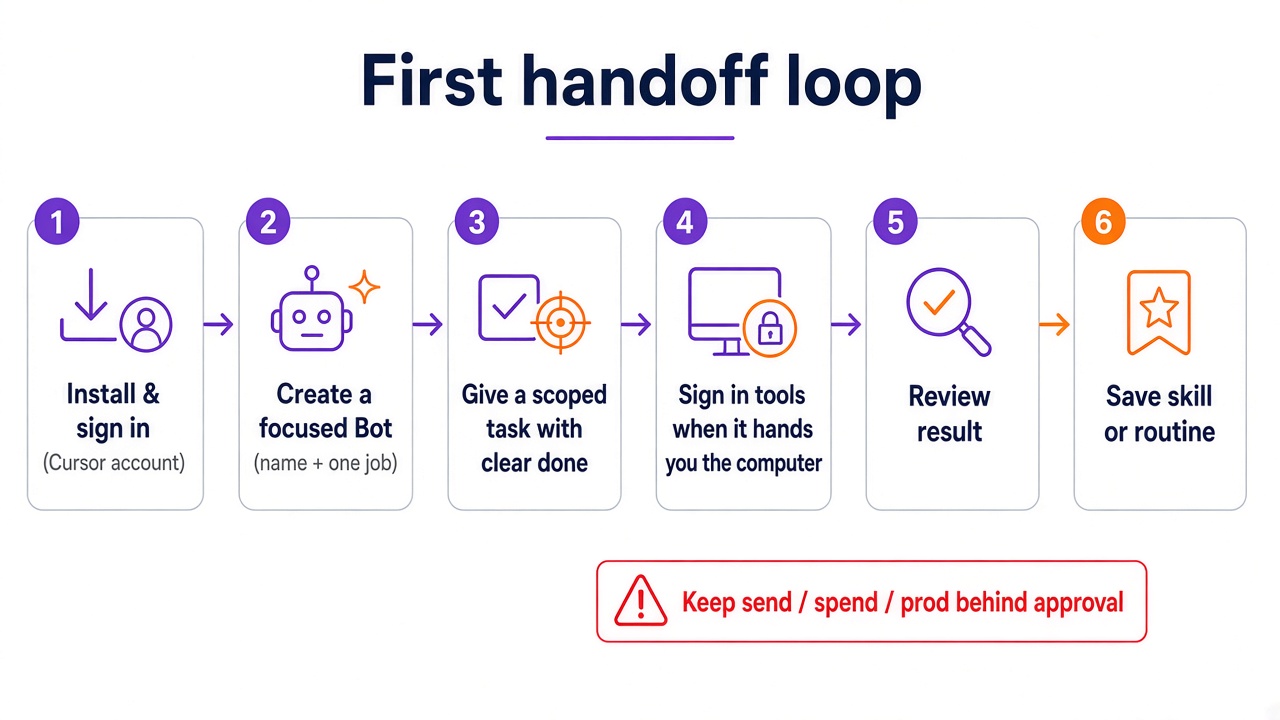
1. Install and sign in
Install the desktop app, choose Get started, and finish auth in the browser. Quit and reopen once if the first launch looks stuck. That clears most setup noise.
2. Create a focused Bot
Prefer one primary job over a catch-all helper. Focused Bots build better memory.
Example:
Name: Piper
Job: Product performance
Description: Investigate product-performance questions with our observability tools. Preserve links and screenshots, separate evidence from hypotheses, and lead with the highest-impact issue. Never change production settings.
3. Give a scoped first task
State the outcome, sources, constraints, deliverable, and where it must stop for you. For a five-minute win, attach a doc and try:
Summarize this document in five bullets. List every date, decision, and open question in a separate section, and cite the section for each item. Don't change the source file.
A stronger "real work" starter from the docs looks like pipeline research that ends in drafts you approve, not sends.
4. Sign in tools when it hands you the computer
When the Bot hits an app that needs auth, it hands you the computer. Open Agent Computer, take over, enter the password or 2FA yourself, then return control. The Bot does not see your password. The session stays on the shared computer for later tasks. Prefer plugins where they exist instead of brittle UI clicks.
5. Review the result
Ask for revisions. Name lasting preferences out loud ("always lead with the decision, then evidence"). Correct once so the next run is closer.
6. Make it stick
When the process is stable, save it as a skill (reusable path) or a routine (runs on a schedule). Create routines only after you've seen retries and failure cases. Keep sending, publishing, purchasing, and production changes behind approval (see Approvals and Auto Review in the Cursor docs).
Roles that work well
The Cursor use-case guide is blunt and right: own a repeatable outcome, start with read-and-prepare work, then add approved actions.
| Role | Owns | Stops at |
|---|---|---|
| Sales outbound | Account research, contact scoring, outreach drafts | Review list (no send / enroll) |
| Talent scout | Sourcing + personalized drafts | Drafts only (no contact) |
| Paid media | Spend vs budget, reallocation recommendations | Slack draft (no budget change) |
| Expense manager | Weekly reconciliation + follow-up drafts | Summary + drafts (no send / reimburse) |
| Product performance | Evidence-backed investigations | Write-up + links (no prod changes) |
| Bug reproduction | Staging repro pack | Steps + screenshots (no prod customer data) |
| Account health | Ranked watch list + next steps | Digest (no customer contact / CRM edits) |
| Chief of staff | Priority-linked daily digest | Decisions you owe (no meeting changes) |
Promote a process to a routine only after the output is reviewable without you babysitting every click.
Shared computer, separate desks
All of your Bots share one cloud computer: files, browser sessions, and logins. That is why handoffs work without repeating setup. Treat anything on that computer as available to every Bot you run. Between different human users, isolation is strict. Each Bot gets its own screen; only one computer-use task runs on a given screen at a time.
A prompt shape that finishes
Steal this template:
- Outcome — what "done" looks like
- Sources — CRM view, inbox, dashboards, attached docs
- Constraints — skip active sequences, no prod data, cite policy
- Deliverable — table, write-up, drafts in your voice
- Stop line — "return for review; don't send / don't change production"
Example adapted from the docs:
Pull this week's pipeline review list from our CRM. Skip anyone already in an active sequence. Research the top five accounts across the web and Slack, pull the right contacts, draft outreach in my voice, and leave me drafts to approve by tomorrow morning.
Common gotchas
- Vague job description → bloated memory and mushy output. Narrow the lane.
- Skipping the stop line → the Bot will try to be helpful past your risk tolerance. Say "don't send."
- Credentials in chat → use the secure computer handoff or a plugin, never paste secrets into the thread.
- Routine too early → schedule only after one clean manual run and a second successful retry.
- Trusting memory for consequential facts → ask it to re-check the live source before you act.
Mobile
On iPhone you can message the same Bots, watch or take over the computer, approve actions, and pause or resume routines. Teaching by demonstration, editing routine schedules, run history, and computer updates stay on desktop. Android availability is listed on Google Play for the same "message like a teammate" loop on the go.
Bottom line
Grok Bot is useful when you treat it like staffing: hire for one outcome, hand off work that spans tools, review the result, then automate the boring middle. Start with a safe, finishable task this afternoon. Promote to a routine only when you would trust a junior teammate with the same checklist.
References
Related Resources
Enjoyed this? Let's work together.
I help companies turn AI strategy into shipped, revenue-generating products.